Instructions for Samsung devices
WARNING: Your run tracking will not work properly if these settings are not configured correctly.
Follow these setup steps for your Samsung device:
Samsung Galaxy Optimization (One UI 7 / Android 15)
Most critical for 2026: Samsung’s new “Energy Efficiency” AI can pause GPS apps. Follow these steps to stay tracked.
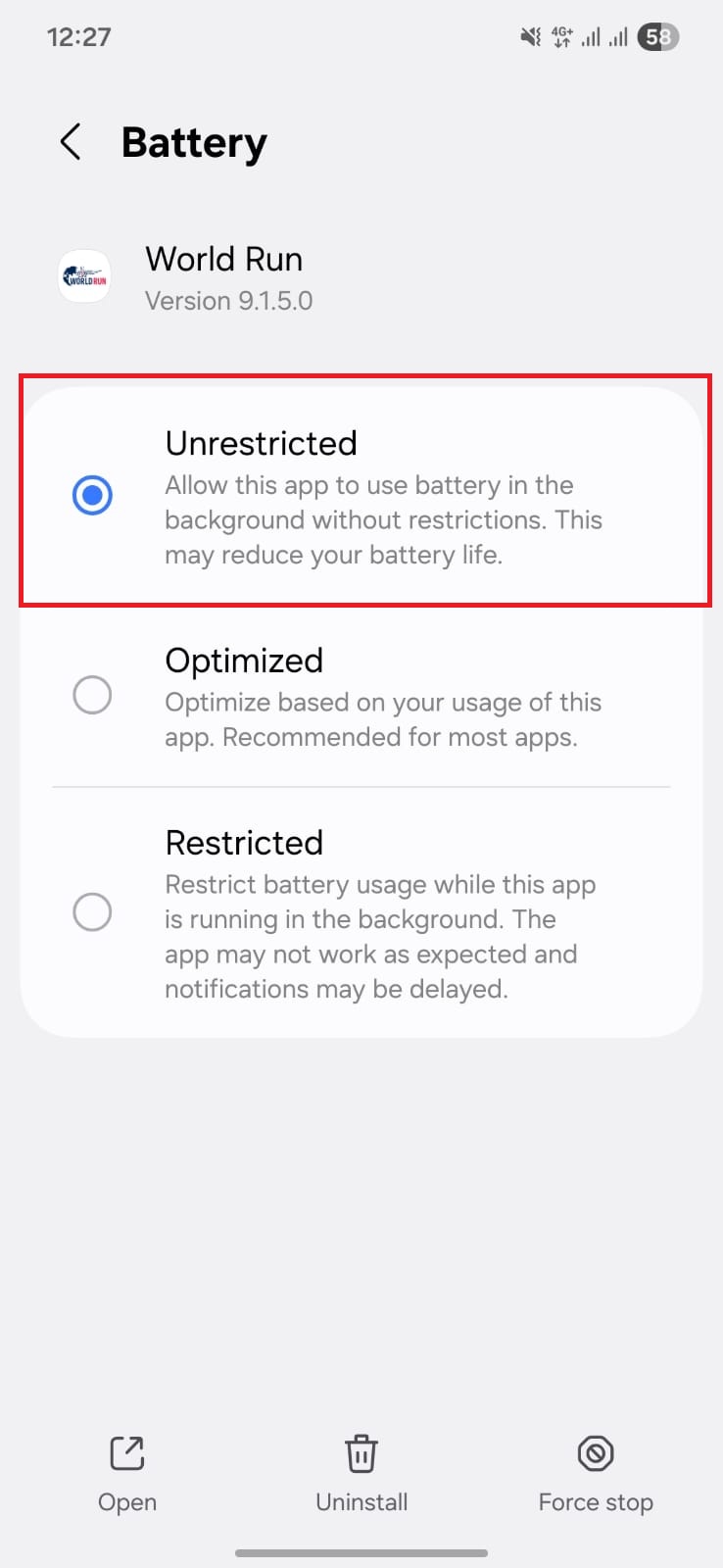
Step 1: Set Battery to ‘Unrestricted’
- Settings > Apps > World Run > Battery
- Select Unrestricted.
Step 2: Add to ‘Never Auto-Sleeping Apps’
- Settings > Battery > Background usage limits > Never auto-sleeping apps
- Tap + and add World Run.
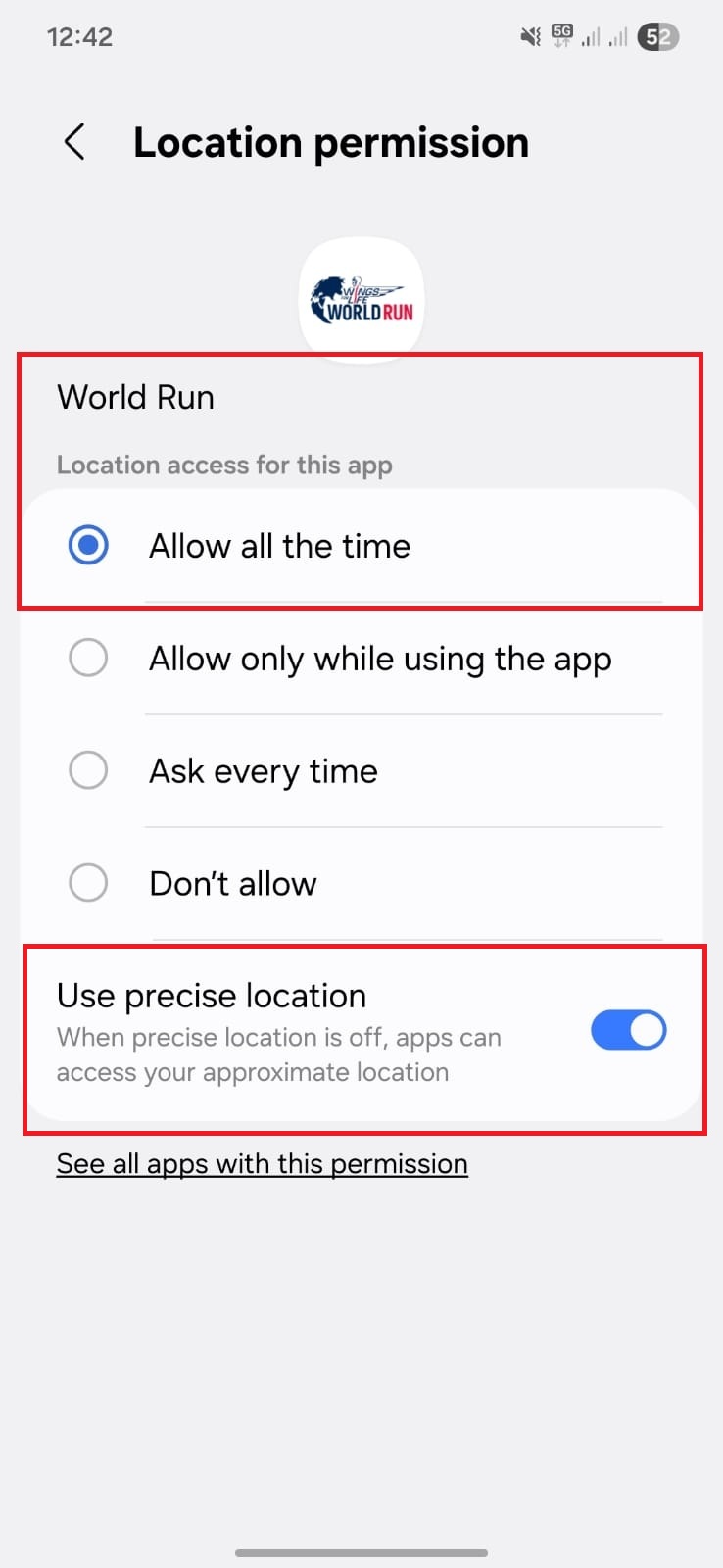
Step 3: Precise Location & Alarms
- Settings > Apps > World Run > Permissions > Location -> Enable ‘Use precise location’.
- Settings > Apps > Special app access > Alarms & reminders -> Enable World Run.
Android 13 and below
Configure these settings:
- Settings > Apps > World Run > Battery > Set to "Unrestricted"
or - Recent Apps > App Info > Battery > Set to "Unrestricted"
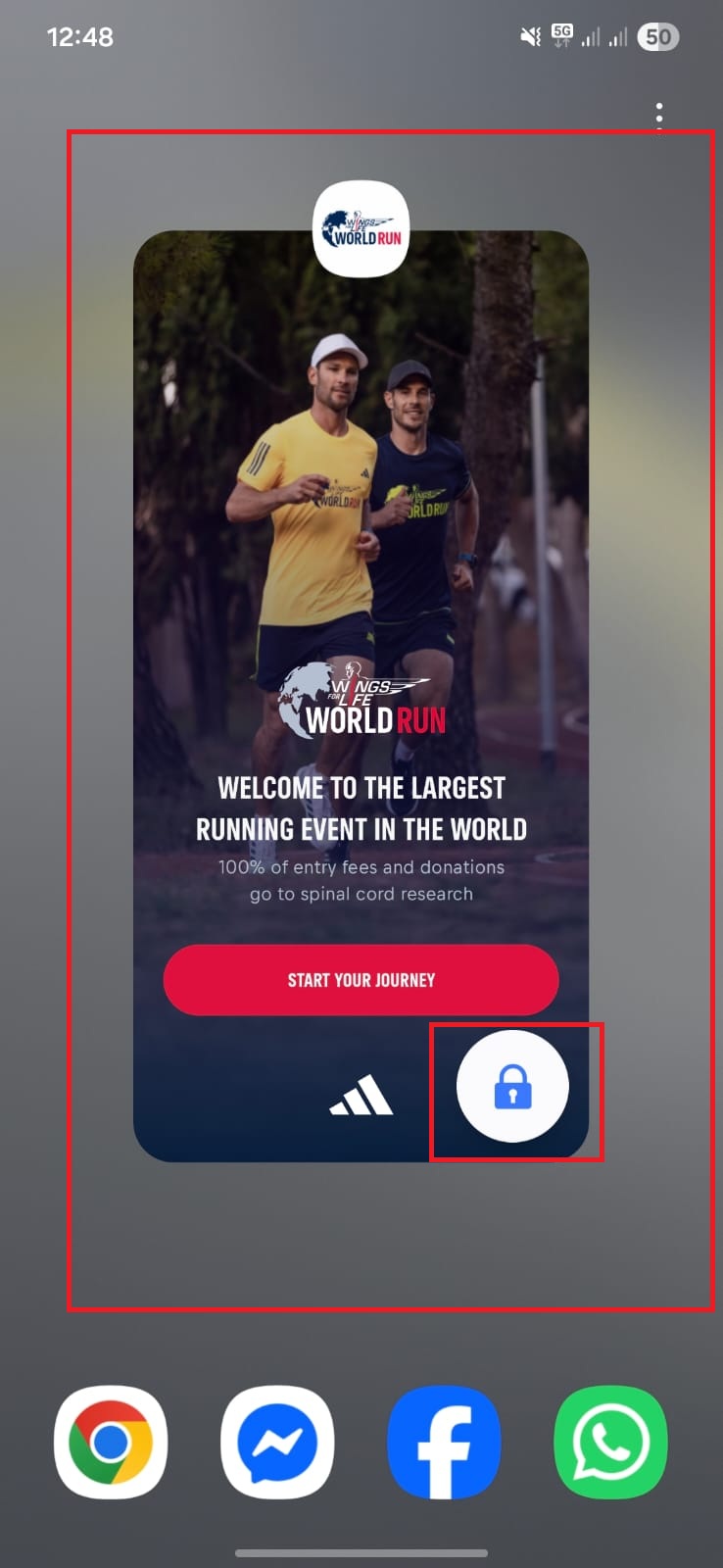
- Lock app in Recent Apps to prevent closing
- Settings > Battery and device care > Battery > Background usage limits > Remove app from any sleeping or unused apps lists
Android 11-12
Required settings:
- Settings > Apps > World Run > Use details > Optimize battery usage > Not optimized
- Settings > Battery > More battery settings > Disable Adaptive battery
- Settings > Battery > Background usage limits > Remove from all sleeping/unused lists
- Lock app in Recent Apps view
Android 10
Configure these settings:
- Settings > Device care > Battery > App power management > Disable all power saving options
- Remove app from Sleeping apps list
- Enable "Allow background activity" for the app